





Welcome to the world of Kindle, where reading is customizable, and you can heighten your reading experience. From different fonts to helpful tools, Kindle allows readers to change the way they read and meet the needs and preferences of everyone.
1. Text Customization
If you’re like me, then seeing boring default fonts fills you with an existential dread. But fear not, Kindle has an awesome text customization tool where you can change the font, the size, and even the boldness of your text. To change the font of your books, open the eBook you’re reading and tap the top right-hand corner of the screen to pull up the menu. Hit the Aa icon, choose Font Family, and voilà, you have multiple different font styles to choose from. Personally, Bookerly is my favorite, but to each their own. To change the size and boldness, just hit the minus or plus sign next to Size or Bold.
2. Popular Highlights
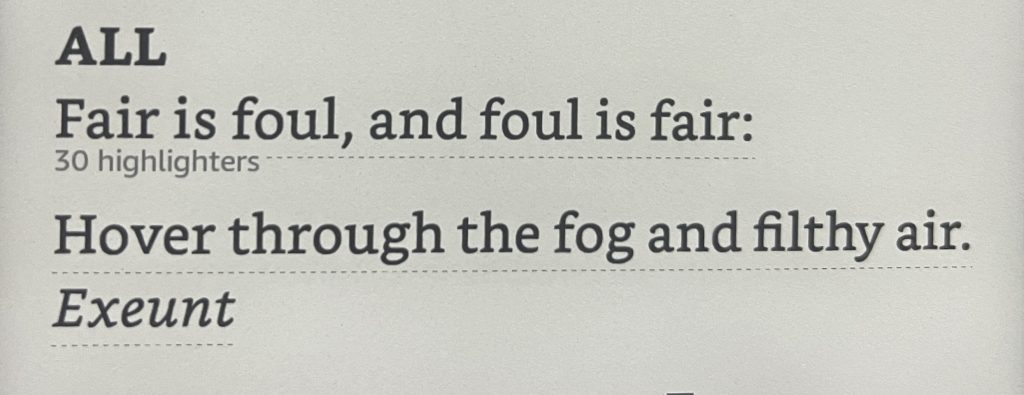
Kindle has this tool called Popular Highlights, which I sincerely believe is the devil in disguise. When reading, you may see text that is underlined with a number of how many people have highlighted it. While this may seem innocent at first, you’ll start to realize that this tool spoils future events of the book. People often highlight important lines in the book, which in turn tips me off that the antagonist is about to attack the protagonist. I like the shock factor, so this feature was not for me. To turn this feature off and on, open the eBook you’re reading and tap in the top right-hand corner to pull up the menu. Hit the Aa icon and then More. Scroll down to Popular Highlights, and you can click the button on or off.
3. Dictionary Tool
It’s possible that from time to time, I skip over words I don’t know, but I often use the dictionary tool Kindle has added to their devices. This very helpful feature allows me to not only find the definition of a word but also gives me the pronunciation. Goodbye, mispronunciation of many, many names! To find the definition and pronunciation of a word, all you have to do is tap and hold down on the word in question, and up will pop a little box explaining it. If you swipe on the box, it will also give you Wikipedia information as well as a translation if it’s in a different language.
4. Collections
I love many different genres of books, and sometimes, I’m in the mood for a certain genre. My problem was that I had too many eBooks, and they were not organized. Kindle has a feature where you can create collections for your books to give you that more organized feel. Now, when I’m in the mood for science fiction, all I do is click and scroll through my science fiction collection.
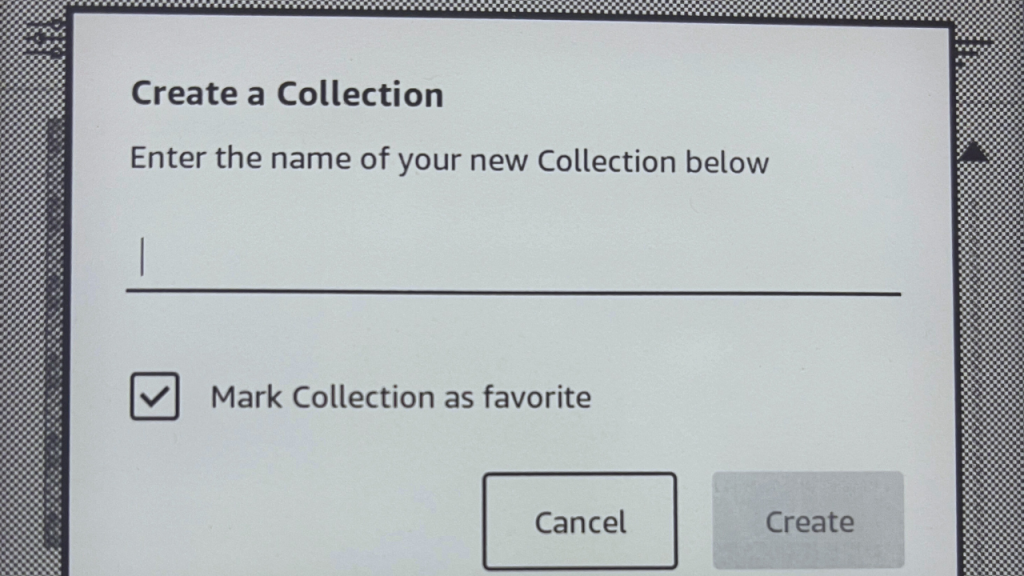
To create a collection, make sure you’re on your home screen and click the three dots in the top right-hand corner. Then tap Create a Collection. Enter the name of your collection, click Create, then check the books you want added. Finally, hit Save. To show your collections in your library, click on the three dots again and tap Settings, then Home & Library. Click on the Library tab and then Collections, which will allow you always to show your collections in your library.
5. Kindle Stand and Clicker
There’s one thing I believe eBooks beat physical copies at, and that is lying down on my side to read. If you’re a lazy reader like me, then you know the struggle of lying down to read a physical copy and the discomfort you get when trying to keep the book open. You can buy a Kindle stand that clips onto your bed, chair, table, etc., and it will hold your Kindle for you. You can also buy a clicker that connects to your Kindle, so you don’t have to tap the screen to turn the page. A lazy day commences!
6. Borrow eBooks From Your Library for Free
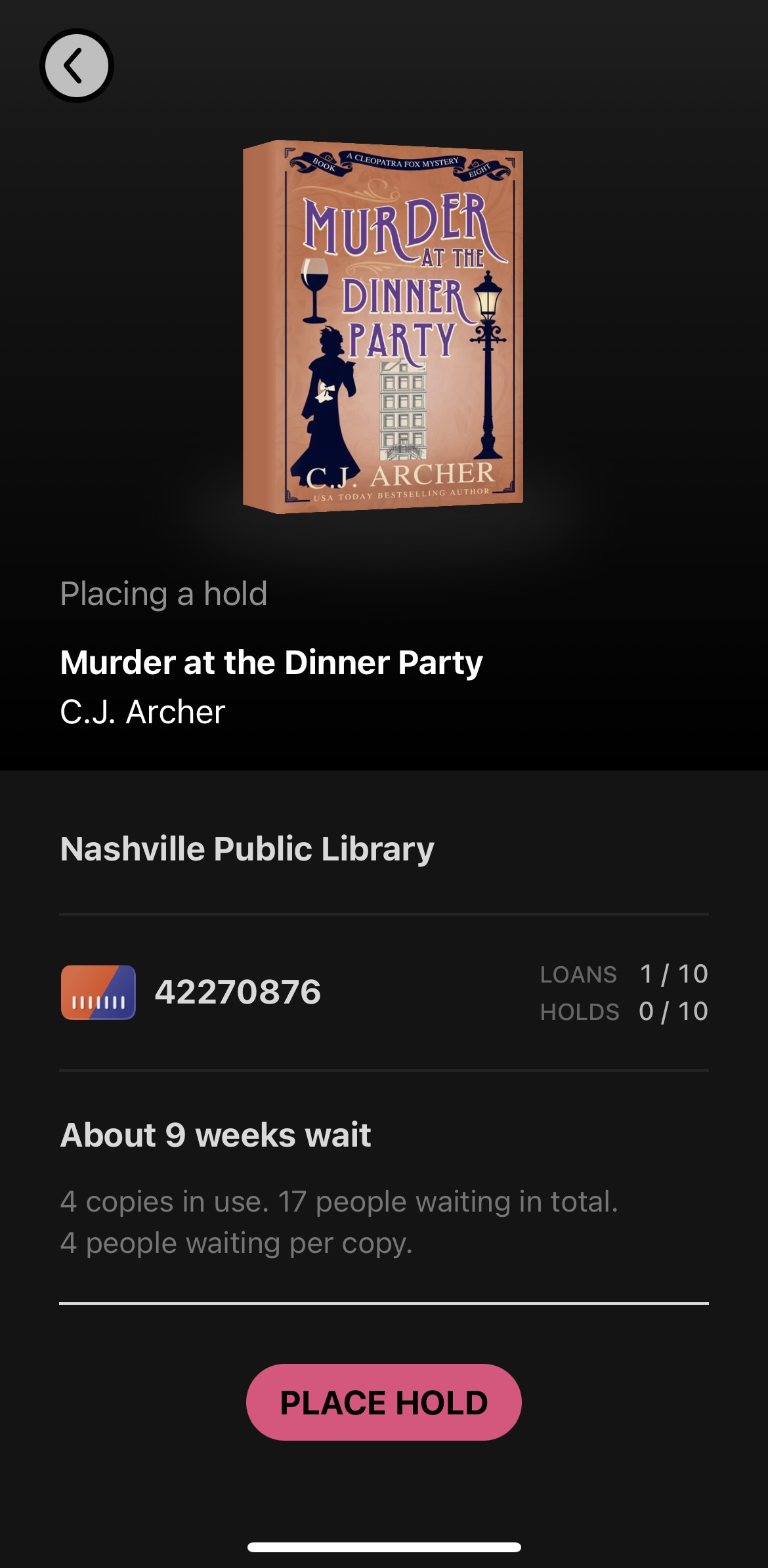
Did you know that you can rent eBooks from your local library for free? All you have to have is a library card to your local library to rent them for two weeks! The Libby app allows you to insert your library card and gives you up to 10 loans and 10 holds. When scrolling through the Libby app, find a book you would like to read, click Borrow, and you will be able to borrow the book for 14 days. If it’s a popular book, you may have to wait in line by placing a hold. The app also allows you to read a sample before borrowing the book.
7. Cases and Stickers
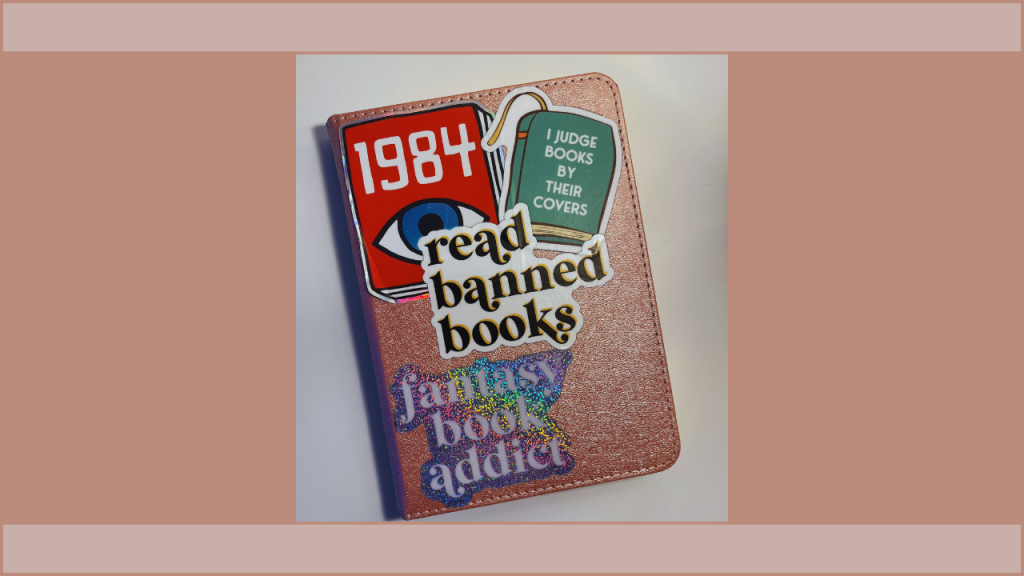
I have a bad habit of dropping my electronics, so buying a case for my Kindle was a no-brainer. I chose a pretty light pink case with a foldable protective cover to prevent scratches on my screen. When searching for a case, I wanted a lightweight feel but also something that would be protective. I also decided that applying stickers directly onto the Kindle’s back would make me feel trapped in designing my Kindle differently in the future, so I applied them to the case instead. There are many different cases out there to buy, even ones with built-in stands; just make sure you’re buying the right size for your generation.
The Kindle allows readers to customize their device to their heart’s content and provides a wide variety of features to enhance their reading experience. Whether you’re an avid reader or a casual bookworm, Kindle makes sure its devices are accessible to everyone and creates a newfound joy for reading.
Want to find out more about eBooks? Click here!
Need book recommendations to read on your new Kindle? Click here!